Docs / Getting started
Install Vexaro Desk and connect to a computer
Both computers need the Windows app. The person you help reads out their Vexaro ID, you enter it, they accept, and you see their screen.
1. Install the app
- Open the Download page and choose the installer. The portable build runs without installing, but it cannot reach the sign-in screen or UAC prompts.
- Check the SHA-256 checksum shown on the download card if your company requires it, then run the installer. It needs Windows 10 or later, 64-bit.
- Start Vexaro Desk. You do not need an account to help someone or to be helped.
To reach the sign-in screen, UAC prompts and Ctrl+Alt+Del on a computer later, install Vexaro there for all users. The app offers this as Add for all users.
2. Find your Vexaro ID
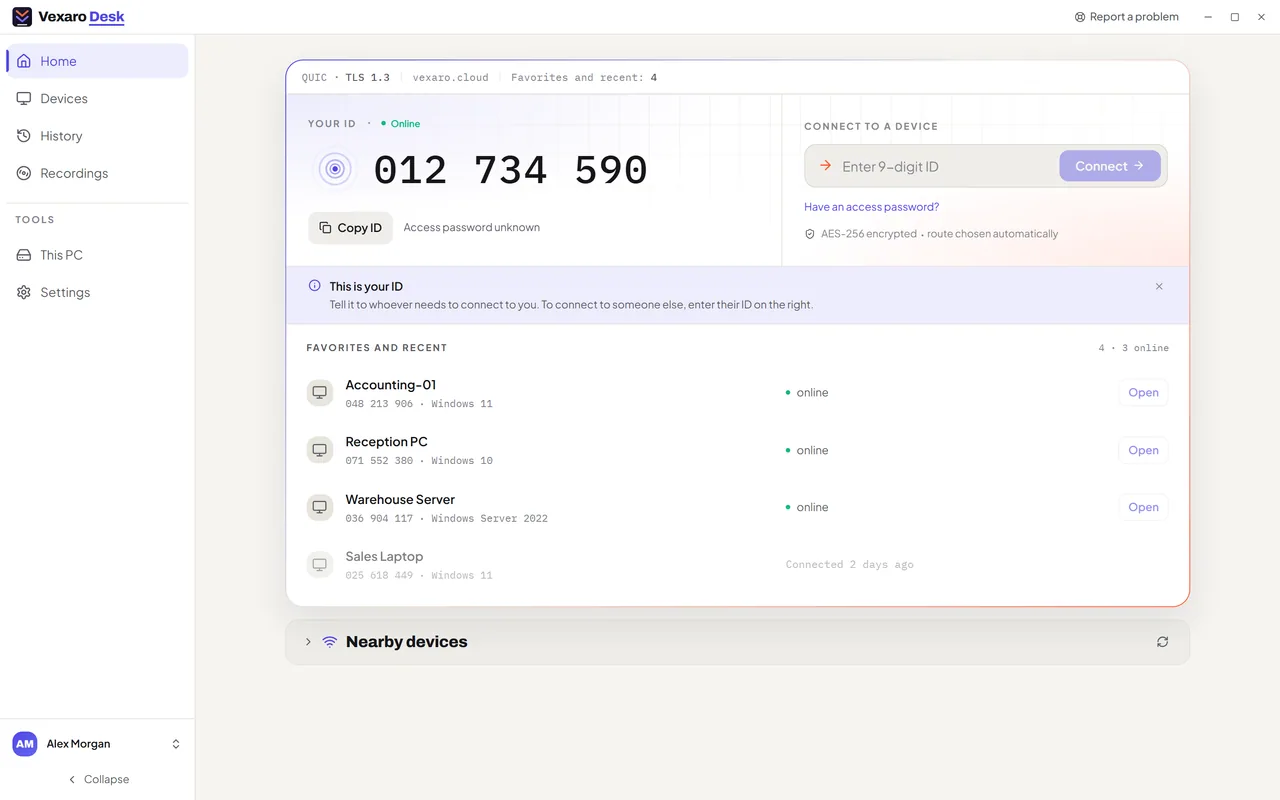
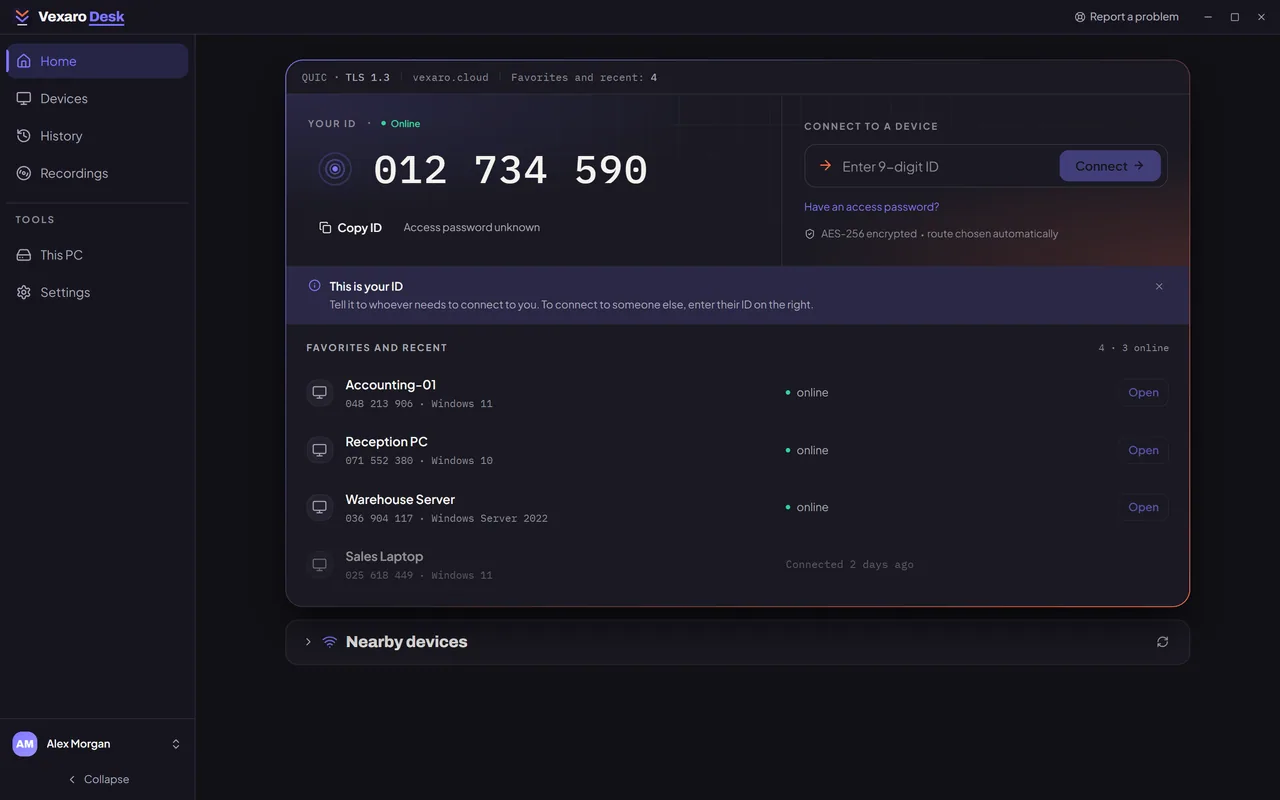
- The Home page shows Your ID: nine digits that stay the same for this computer.
- Press Copy ID to send it in a chat, or read it out on the phone.
3. Connect to another computer
- Ask the person at the other computer for their Vexaro ID.
- Under Connect to a device, enter the nine digits and press Connect.
- On their screen a request shows who is asking. Nothing starts until they accept. A request nobody answers is declined after two minutes.
- When they accept, the session window opens with their screen. Your mouse and keyboard work there.
4. End the session
- Press Disconnect on the toolbar of the session window, or close the window.
- The person at the other computer can end the session at any time from their own panel.
Every new attended session needs the person's consent again. For computers nobody sits at, set up unattended access.